Storage Is FULL! How to Optimize Files and Fix Storage Problems on Mac, iPhone, and iPad
That dreaded warning pops up at the worst possible time: “Storage Almost Full.”
Your Mac slows down, your iPhone refuses photos, and suddenly you’re deleting things in a panic like it’s a digital garage sale.
In this guide, we’ll calmly (and safely) walk through how storage actually works on Macs, iPhones, and iPads — and how Apple’s built-in optimization tools can free up space without deleting the things that matter most.
This isn’t about guesswork. It’s about control.
🎓 What You’ll Learn
• How to see exactly what’s taking up space on your Mac
• How macOS storage recommendations actually work (and when not to use them)
• The difference between local storage and iCloud storage
• How iCloud Photos and iCloud Drive optimize space behind the scenes
• What doesn’t sync to iCloud (this one surprises people)
• The biggest downside of relying on optimized storage — and how to plan for it
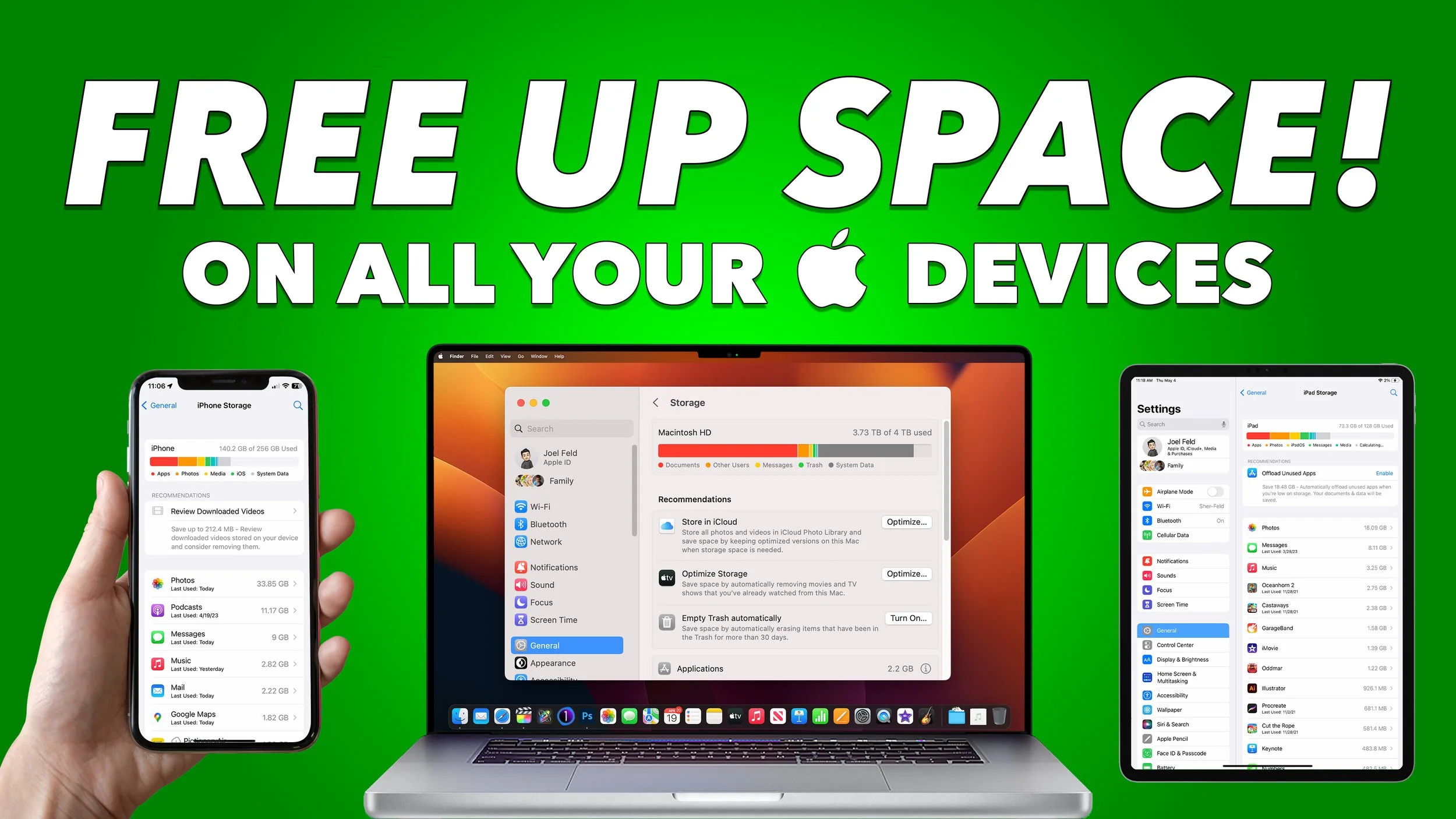
🧠 Understanding Mac Storage (Local vs Cloud)
How macOS Storage Analysis Works
When you open System Settings → General → Storage, macOS is showing local disk usage only — not iCloud.
This is where you identify:
• Large files
• Old downloads
• Media stored in Messages
• Applications quietly hoarding gigabytes
Nothing here deletes itself unless you say so.
Why the Storage Graph Matters
That colorful bar at the top isn’t decoration — it’s a map.
Photos, documents, apps, system data… each category tells a story about how your Mac is being used.
☁️ iCloud Photos Optimization Explained
Download Originals vs Optimize Storage
Under Photos → Settings → iCloud, you have two choices:
• Download Originals
Keeps full-resolution photos locally (best for backups & Time Machine)
• Optimize Storage
Stores full files in iCloud and keeps lightweight versions locally
Optimized photos still appear everywhere — they just don’t consume full disk space unless you open them.
📂 iCloud Drive Optimization (Desktop & Documents)
What Actually Syncs
Only these folders sync automatically:
• Desktop
• Documents
Folders like Downloads, Movies, Music, and Pictures do not sync unless you move files into iCloud Drive manually.
Removing Downloads Without Deleting Files
Right-click any file or folder in iCloud Drive and choose Remove Download:
• File stays in iCloud
• Space is freed locally
• Thumbnail remains visible
It’s decluttering without regret.
📱 iPhone & iPad Storage Optimization
Photos on iOS & iPadOS
Under Settings → Photos, choosing Optimize Storage:
• Keeps full photos in iCloud
• Stores compressed versions locally
• Downloads originals only when needed
iCloud Drive on Mobile
Unlike macOS, iPhone and iPad automatically optimize iCloud Drive files.
You manually control storage using:
• Download Now
• Remove Download
No switch — just quiet efficiency.
⚠️ The Biggest Downfall of Optimized Storage
Here’s the truth Apple doesn’t shout from the rooftops:
No internet = no full files.
If you need photos, videos, or documents offline:
• Download them ahead of time
• Or keep one Mac with Download Originals enabled
Optimization is powerful — but planning is smarter.
