Mac Keyboard Shortcut Legend: A Complete Visual Guide for macOS
Mac keyboard shortcuts use symbols instead of words — and once you understand them, everything clicks.
If you’ve ever seen shortcuts like ⌘ + C or ⌥ + ⇧ + K and thought, “Wait… what?”, you’re not alone. This guide breaks down the most common Mac keyboard symbols, explains what each modifier key does, and shows how they work together across macOS.
Whether you’re brand new to the Mac or just want to move faster with fewer mouse clicks, this guide will help shortcuts finally make sense.
What Are Mac Keyboard Shortcut Symbols?
Unlike Windows, macOS uses symbols to represent modifier keys in menus, shortcuts, and on-screen instructions. These symbols appear everywhere — from app menus to help guides — and learning them is the key to reading shortcuts with confidence.
Once you know what each symbol means, you’ll instantly recognize how shortcuts are constructed and how to use them across apps.
The Most Common Mac Modifier Keys
These modifier keys are the foundation of nearly all macOS keyboard shortcuts:
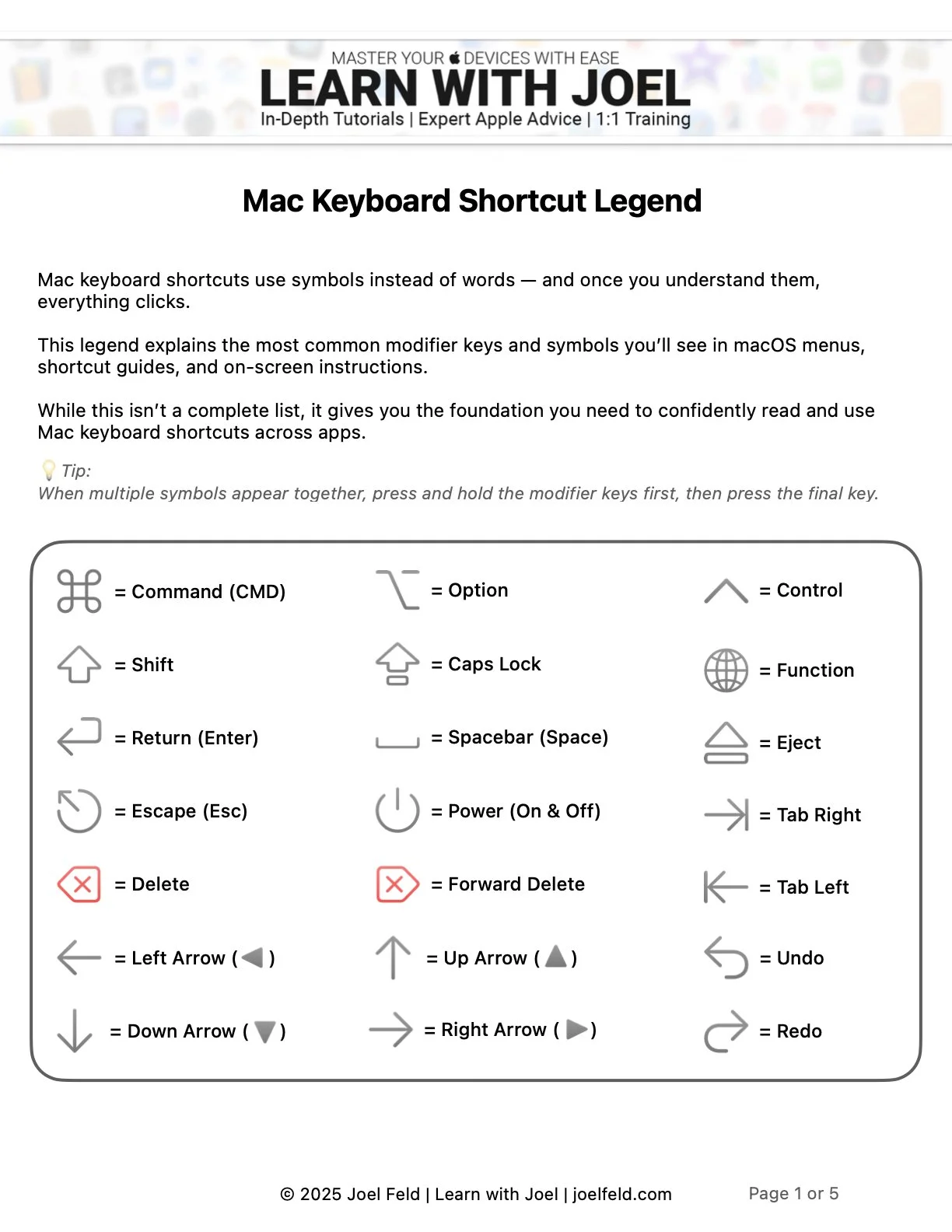
⌘ Command (CMD) – The primary shortcut key on a Mac
⌥ Option – Reveals alternate actions and special characters
⇧ Shift – Capital letters, symbols, and range selection
⌃ Control – Used for system commands and advanced actions
fn Function – Accesses F1–F12 and special system behaviors
You’ll often see these symbols combined together, showing exactly which keys to hold down before pressing the final key.
Mac keyboard shortcut symbols legend showing Command, Option, Shift, Control, and Function keys
Commonly Used Mac Keyboard Shortcuts
macOS includes hundreds of shortcuts, but most people use the same core set every day. Learning just a few can dramatically speed up common tasks like copying text, switching apps, taking screenshots, and managing windows. This is just the start of mastering some of the shortcuts in your own workflow.
Some shortcuts work across nearly every app, while others control the system itself — like locking your screen or force quitting an unresponsive app.
How Modifier Keys Change the Keyboard
Holding a modifier key doesn’t just trigger shortcuts — it can completely change what your keyboard does:
Function (fn) turns the top row into traditional F-keys
Option reveals hidden characters and menu options
Shift changes letters, numbers, and selection behavior
Shift + Option unlocks even more symbols — including accented characters and special icons
Understanding how the keyboard changes when these keys are pressed makes shortcuts feel logical instead of mysterious.
Why Keyboard Shortcuts Matter on macOS
Keyboard shortcuts aren’t about memorization — they’re about flow.
When you rely less on the mouse, you:
Work faster
Stay focused
Reduce repetitive movements
Navigate apps more efficiently
Once shortcuts become muscle memory, using a Mac feels smoother, quicker, and far more intentional.
You can customize most keyboard shortcuts in macOS here:
> System Settings > Keyboard > Keyboard Shortcuts
Download the Free Mac Keyboard Shortcut Legend
Prefer a visual reference you can keep nearby?
I’ve created a free, printable Mac Keyboard Shortcut Legend that walks through:
Modifier key symbols
Commonly used shortcuts
How the keyboard changes with each modifier
Clear visual examples across macOS
👉 Download the Free Mac Keyboard Shortcut Legend (PDF)
(Perfect for beginners, switchers, or anyone who just wants shortcuts to finally make sense.)
💡 Tip: Most macOS apps display keyboard shortcuts directly in their menu bars. It’s one of the easiest ways to discover new shortcuts as you work — no memorization required.